

Canvas toolbar
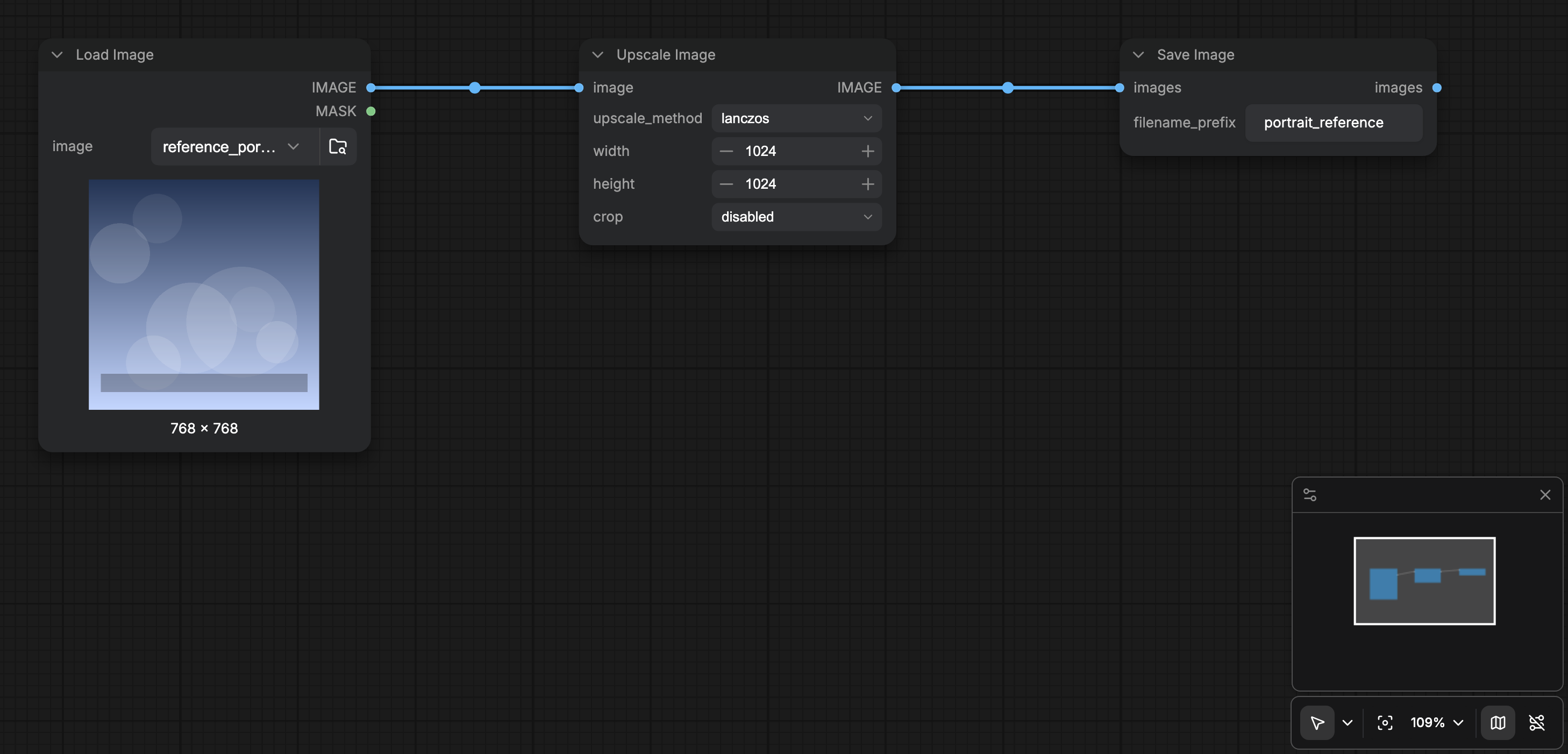
When Show graph canvas menu (Comfy.Graph.CanvasMenu) is on (default), a floating toolbar sits at the bottom-right of the canvas:
You can hide the whole toolbar with Show graph canvas menu in Lite Graph / Canvas settings.
View menu
The View menu registers the same navigation commands so you can run them from the menu bar or the command palette:- Toggle Bottom Panel
- Browse Templates
- Focus Mode
- Canvas Performance (
Comfy.ToggleCanvasInfo, togglesComfy.Graph.CanvasInfo) - Toggle Minimap
- Toggle Link Visibility
- Zoom In / Zoom Out / Fit View
Focus Mode
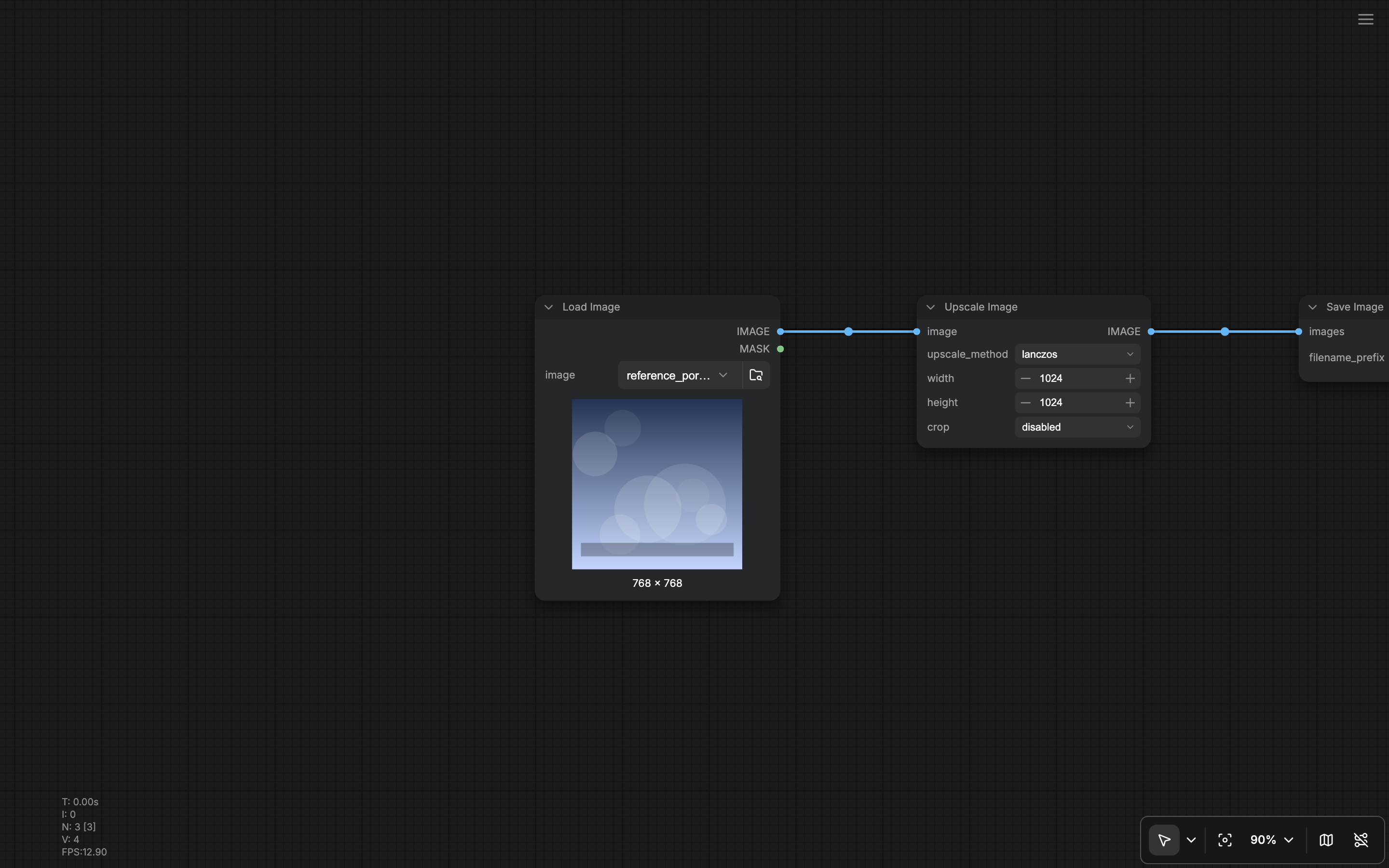
Focus Mode (Workspace.ToggleFocusMode) hides workspace chrome so you can concentrate on the graph. While it is on:
- The top menu section is hidden (new menu).
- Left/right sidebar panels and the bottom panel are not rendered in the splitter layout.
- A hamburger control appears so you can exit Focus Mode (Show menu).
Minimap options
Beyond show/hide, Settings under Minimap control what the map draws (node colors, links, groups, bypass state, error state). See Lite Graph settings and related Appearance entries when present.Links and canvas globals
Link shape and whether connected links are shown are also available as quick toggles in the Right Side Panel Global Settings when nothing is selected, and in full under Lite Graph settings (Comfy.LinkRenderMode and related options). Grid spacing and snap-to-grid live in the same Global Settings / Lite Graph areas.
Related pages
- Interface Overview
- Shortcuts
- Lite Graph settings
- Right Side Panel (Global Settings quick toggles)
- Bottom Panel