

ComfyUI/models tree (and any extra model paths you configured). Use it to search by name, browse by folder type, preview metadata, and drag a model onto the canvas to insert the matching loader node.
Availability differs by version:
- Self-hosted / Desktop: the sidebar shows a folder tree of local model files. On Desktop, in-progress downloads appear at the top of the panel, and the sidebar icon can show a badge with the download count.
- Comfy Cloud: when the assets system is available and Use the asset browser for the model library is on (Cloud default), clicking Models opens the asset browser for models instead of the sidebar tree. Uploading or importing your own weights is covered in Import models.
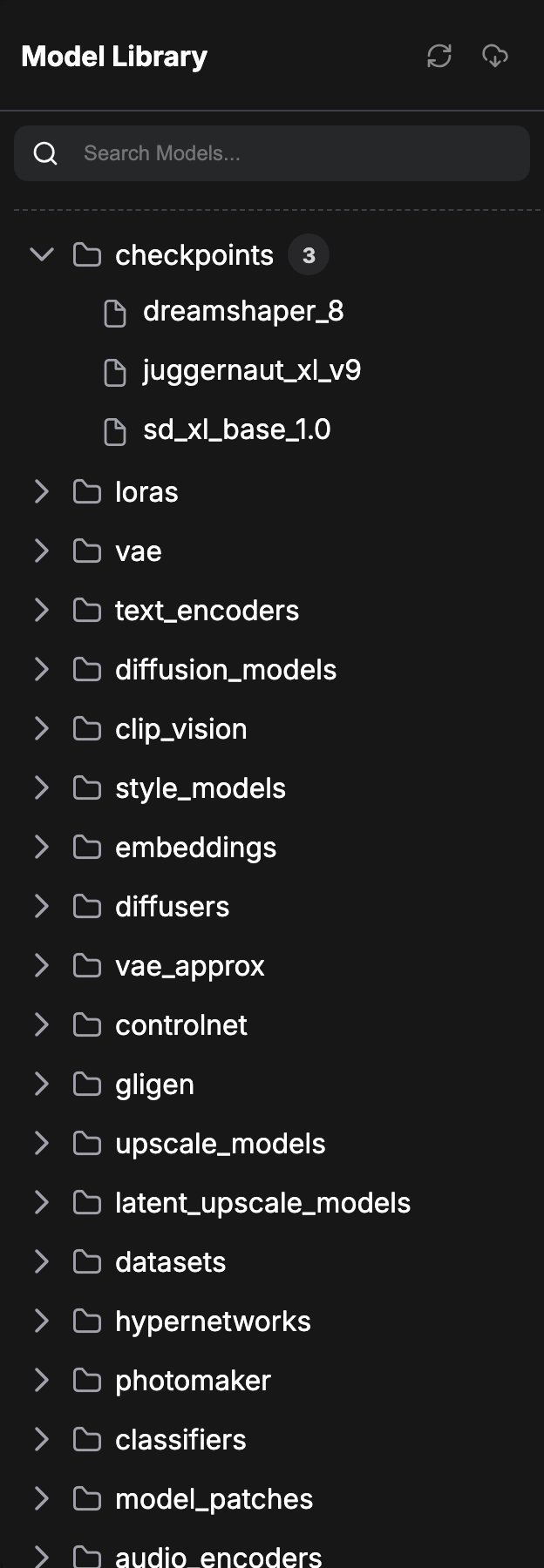
Opening the Model Library
Click the Models icon in the left sidebar. The panel title is Model Library.Browse by folder
Without a search query, the panel lists root model folders (for examplecheckpoints, loras, vae, controlnet, diffusion_models, upscale_models, text_encoders, and others returned by the server). Expand a folder to load its files.
By default, root folders load their contents when you open them. You can change that in Settings:
- Automatically load all model folders (
Comfy.ModelLibrary.AutoLoadAll): when on, every folder loads as soon as you open the library (can be slow on large libraries). When off (default on self-hosted), a folder loads when you expand it. This setting is hidden on Comfy Cloud. - What name to display in the model library tree view (
Comfy.ModelLibrary.NameFormat):title(default) uses model metadata titles when available;filenameshows a simplified file name without the directory or.safetensorsextension.
Search
The search box at the top filters models by name and related searchable fields as you type. Searching loads all folders so results are complete. Results auto-expand in the tree. If more than 500 models match, the panel shows a capped-results note; refine the query to reach the rest.Preview and refresh
Hover a model leaf to open a preview card when metadata is available. The card can show title, file name, architecture, author, preview image, usage hint, trigger phrase, and description. Use the refresh button in the panel header, or pressr (Comfy.RefreshNodeDefinitions), after you add or remove model files while ComfyUI is running. That refresh also reloads node combo lists so loader widgets pick up new files.
Drag a model onto the canvas
Model leaves are draggable. Drag one onto the canvas to create the loader node mapped for that folder (for exampleCheckpointLoaderSimple for checkpoints, LoraLoader for loras, VAELoader for vae, UNETLoader for diffusion_models, CLIPLoader for text_encoders, and other mappings registered in the frontend). The matching widget is filled with the model file name.
If a folder type has no registered loader mapping, the drop may not create a node. Missing models that a workflow expects still appear under the Right Side Panel Errors tab, with download or import actions when available.
Related settings
Related pages
- Interface Overview
- Assets (media files, not model weights)
- Import models (Cloud)
- Right Side Panel (missing-model errors)
- Comfy settings (Model Library section)