

Browse Templates in the View menu, or the Templates control in the sidebar). See Templates. Packaged app workflows (files ending in .app.json) also appear under Apps.
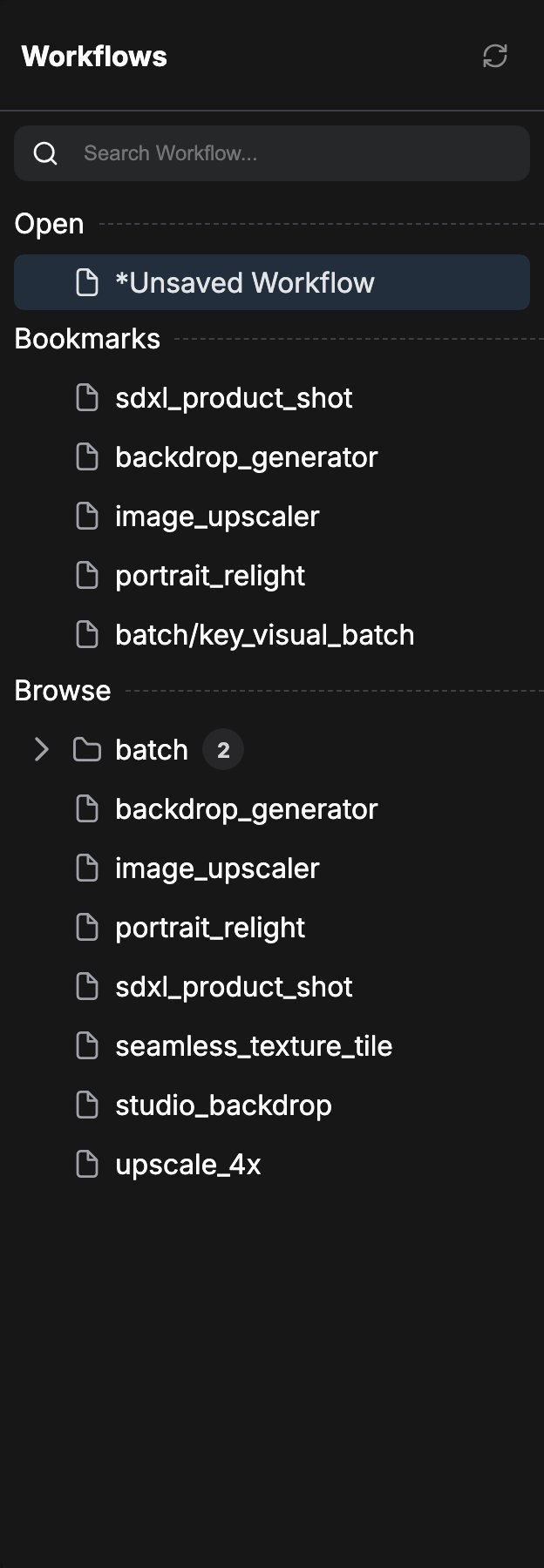
Opening the Workflows panel
Click the Workflows icon in the left sidebar (default shortcut:w). The panel title is Workflows. Use the refresh button in the header to resync the saved-workflow list from disk.
Sections in the panel
When you are not searching, the panel is split into sections:Open
Shown only when Opened workflows position (Comfy.Workflow.WorkflowTabsPosition) is set to Sidebar. It lists every workflow currently open in the editor as a flat list. Modified or unsaved graphs show a * before the name. Click the close button on a row to close that tab. Hold Shift while closing to skip the unsaved-changes warning (the close button switches to a destructive style while Shift is held).
When the setting is Topbar (the default), open workflows stay in the top tab strip instead, and this section is hidden. If the position is Sidebar, the sidebar icon also shows a badge with the open-workflow count when the count is greater than zero.
Bookmarks
A flat list of workflows you bookmarked. Use the bookmark icon on a leaf in Browse (or here) to toggle the bookmark. The section is hidden when you have no bookmarks.Browse
Your persisted workflows as a folder tree under the workflow storage path for this install. Click a leaf to open it. Empty libraries show an empty-state message.Search
The search box filters all workflows (not only Browse) by path. While a query is active, the panel switches to a single search-results tree.Actions on a workflow
On a workflow leaf you can:- Open: click the leaf to load it as the active graph.
- Rename: rename in place; the file is renamed on disk with the correct workflow suffix (
.jsonor.app.json). - Delete: remove a persisted workflow (temporary graphs cannot be deleted this way).
- Bookmark: toggle the bookmark from the leaf action button.
- Drag: workflow leaves are draggable for drop targets that accept them.
- Context menu:
- Insert: insert the workflow into the current graph (not offered in App Mode).
- Duplicate: create a copy of the workflow.